Resolving alarms
Open Alarms in the left menu. The page lists every alarm, newest first, including the ones already resolved.
The columns
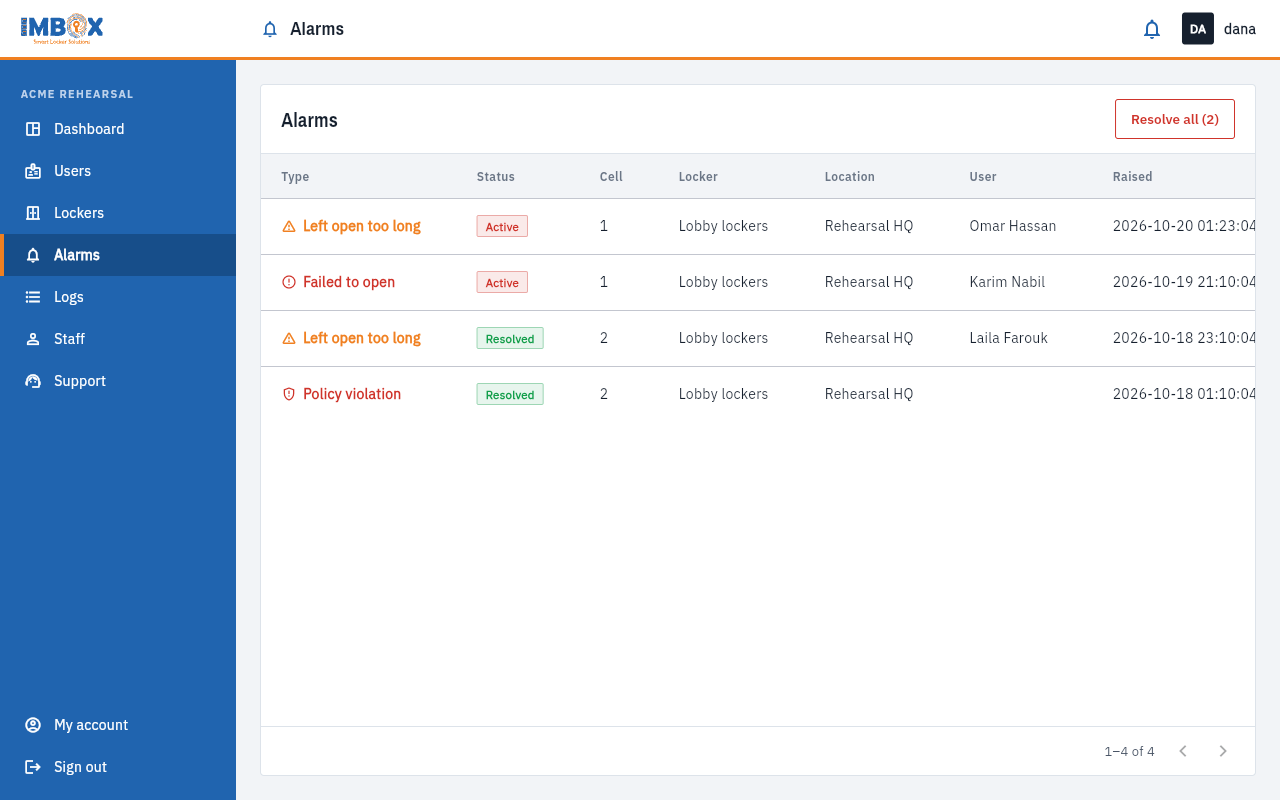
| Column | Meaning |
|---|---|
| Type | Which alarm it is. |
| Status | Active or Resolved. |
| Cell | The cell number. |
| Locker | The locker station and the location. |
| User | The person it is about, when there is one. |
| Raised | When it started. |
| Action | A Resolve button on active alarms. |
On a phone each alarm is a card: its type and status at the top, the station underneath, and the Resolve button across the bottom.
Resolve one alarm
- Check the cell first. Make sure the problem is gone.
- Press Resolve on that alarm. It turns to Resolved.
You need the permission Resolve alarms. Owner, Admin and Operator have it.
Resolve all of them
The Resolve all button at the top clears every active alarm at once, and shows how many it will clear, for example Resolve all (2). You need the permission Resolve every alarm on the screen at once. Owner and Admin have it.
Resolving an alarm tells the system the problem is dealt with. Use Resolve all only after you have looked at each one.
Alarms that clear themselves
Some alarms go away on their own: a door left open once it closes, a low battery once it is fixed. You never have to resolve those. See What the alarms mean.
The history
Resolved alarms stay in the list, so you can see how often a cell gives trouble. To follow one cell or one person over time, use the Logs.