Reading the dashboard
The dashboard is the first page most people see. It answers one question: is everything fine, and if not, where?
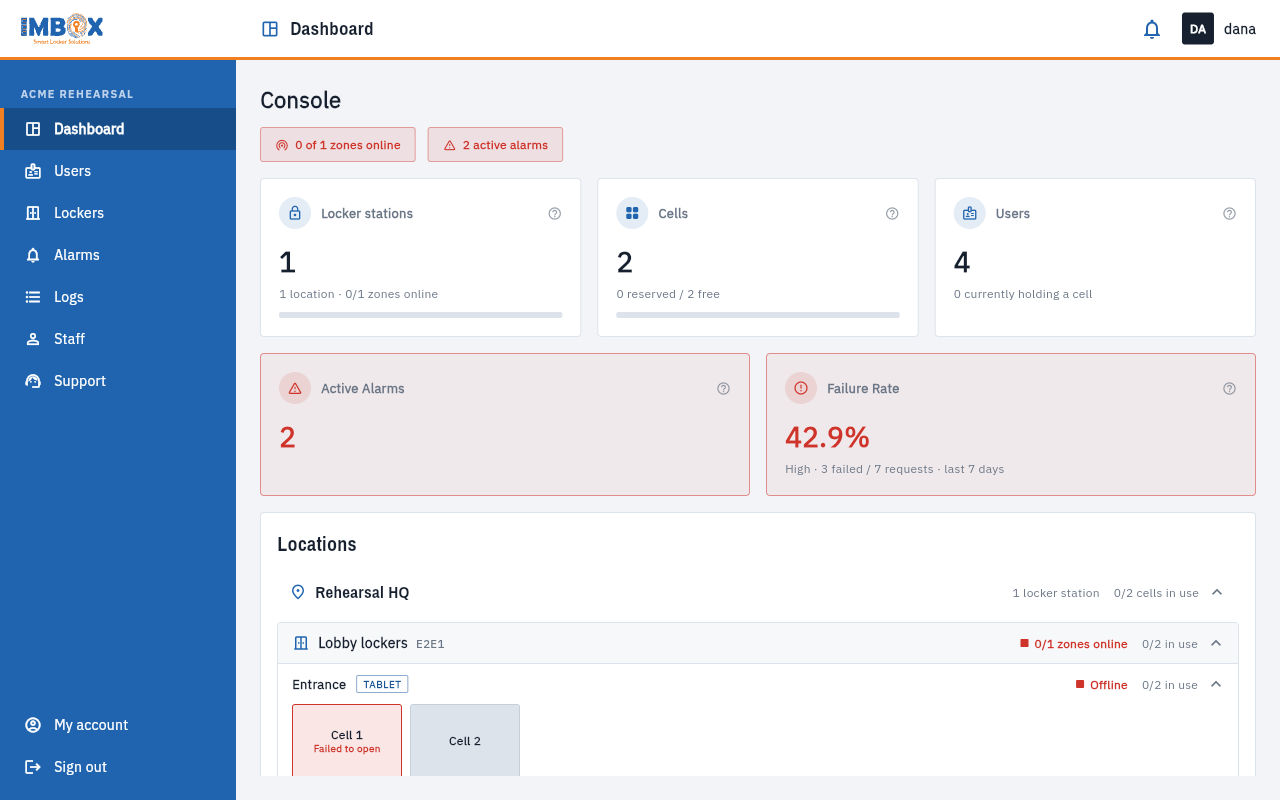
Everything on it updates by itself. When a door closes, an alarm is raised or a cell is opened, the page changes within a second or two, so you do not need to refresh it.
The two status badges
At the top, under the title, two badges give the answer at a glance.
| Badge | Meaning |
|---|---|
| 0 of 1 zones online | How many screens and readers are connected right now. Red means at least one is not. |
| 0 active alarms | How many alarms are open. Green means none. |
A zone that is not online still opens cells with a card, but its screen cannot show messages. Look at it in Locker stations.
The five tiles
| Tile | What it shows |
|---|---|
| Locker stations | How many stations you have, in how many locations, and a bar for how many of their zones are online. |
| Cells | The number of cells, how many are reserved and how many are free, and a bar for how full they are. |
| Users | How many users are set up, and how many are holding a cell right now. |
| Active alarms | How many cells need attention. The tile turns red when there is one. |
| Failure rate | Out of every request for a cell, how many ended without the person getting one, over the last 7 days. |
Hover or tap the small question mark on a tile for its own explanation.
The Cells bar
The bar turns from green to orange to red as cells fill up:
- Normal below 60 % of the cells reserved;
- Busy from 60 %;
- Full from 85 %.
The Failure rate tile
The tile says what the number means:
- Healthy below 5 %;
- Watch from 5 %;
- High from 15 %.
It also shows how the failures split: how many times no cell was free, and how many times the free cell did not open. The first means you need more cells or have to free some; the second means a lock needs a look. "No data" simply means nobody asked for a cell in that period.
IMBox can change the 60 %, 85 %, 5 % and 15 % lines for your organisation. Your IMBox contact can tell you what yours are.
Locations
The Locations panel is your whole estate in one list. Each location opens to its locker stations, and each station opens to its zones and their cells.
- On a location row: how many stations it has and how many cells are in use.
- On a station row: how many of its zones are online and how many cells are in use.
- On a zone row: whether it is online or offline, which kind of screen it has, and its cells.
Each cell is a small tile. Its colour tells you its state; see Zones and cells for the full list.
Daily use
The Daily use panel is a chart for one locker station, or one zone, over the last days.
- Choose the Location, the Locker and the Zone at the top of the panel.
- Read the chart. Blue bars are the number of times a cell was opened each day. Red bars are the number of times someone came for a cell and could not get one.
- Open the Failure rate tab to see how the failure rate moved. Choose a range: 24 hours, 7 days, 30 days or 12 weeks.
The chart shows the station you chose, and below it the zone you chose, so you can compare them.
Most used locker stations
A ranking of your stations by how much they were used in the last seven days: cells opened, plus the times someone could not get a cell. Open one to see its zones ranked the same way.
Active alarms
The panel lists the cells that failed to open or were left open too long. With the right permission, a Resolve all button clears them all at once. See Resolving alarms.