Locker stations
Open Lockers in the left menu. The first tab, Locker stations, shows one station at a time.
Choose a station
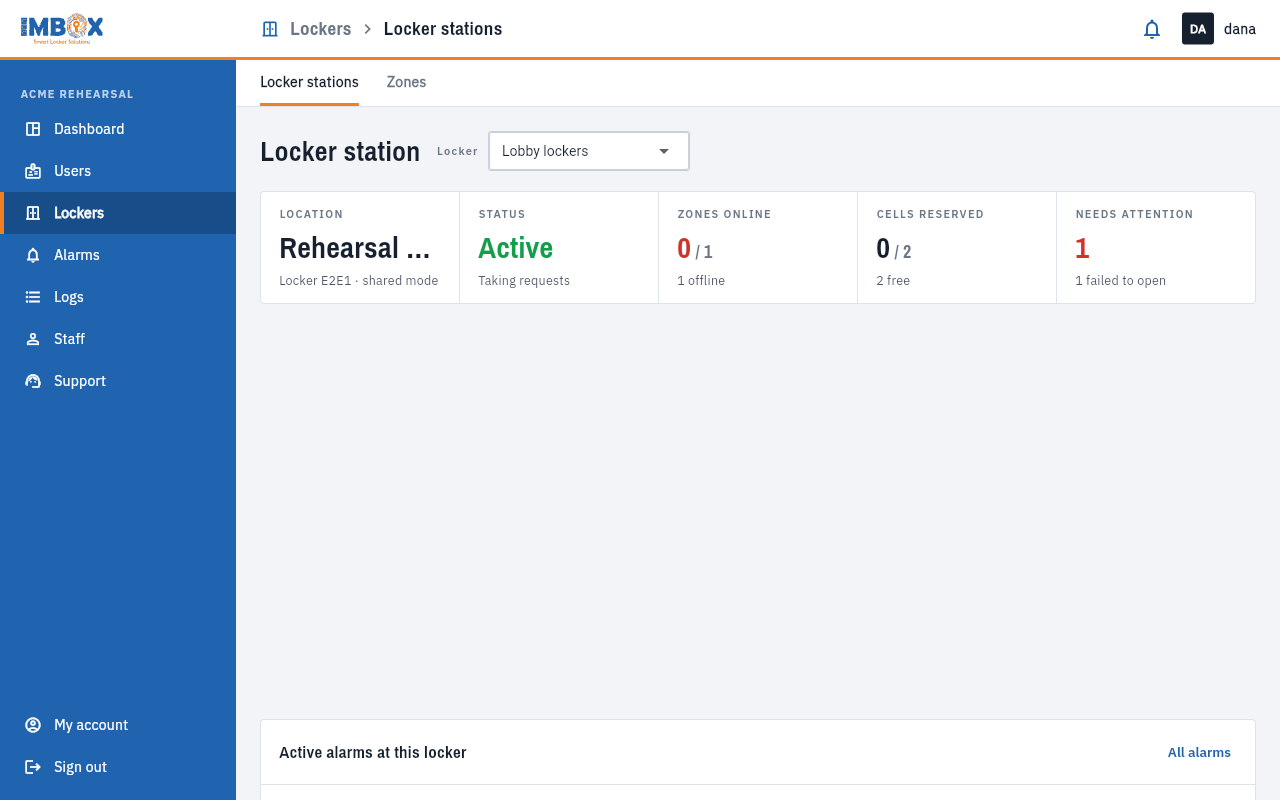
At the top, the Locker drop-down lists your stations. Choose the one you want. If you have only one, it is already chosen.
The summary
| Part | What it tells you |
|---|---|
| Location | Where the station is, its name, and its mode: shared or pre-assigned. |
| Status | Active and "Taking requests" when the station is working. |
| Zones online | How many of its zones are connected, for example 0 / 1, with "1 offline". |
| Cells reserved | How many cells are in use, for example 0 / 2, and how many are free. |
| Needs attention | How many cells have a problem. "Nothing to fix" when none. |
Zones
A table lists each zone of the station:
| Column | Meaning |
|---|---|
| Zone | The zone's name. |
| Client | What the zone has: a tablet screen, an information screen, or a card reader. |
| Status | Online or offline. |
| Cells | How many cells belong to it. |
| Failure rate | How often a request for a cell in this zone failed. |
The See cells by zone button opens the Zones page, where you see and handle each cell.
Alarms on this station
Under the zones, a list shows this station's active alarms with the cell number, and an All alarms button that opens the Alarms page. When there are none it says "No active alarms."
A station that is still being set up
A station that IMBox has registered but not finished shows a banner: "This station is still being set up." IMBox completes it. Until then its cells may not be ready.
If a zone is offline
A zone is offline when its screen or reader has not been heard from recently, or when the whole station has lost its connection.
- Check that the tablet or reader is switched on and has power.
- Check the station's internet connection.
- Wait two minutes. Zones reconnect by themselves.
- If it stays offline, report an issue and name the zone.
Cells keep working while a zone is offline: people can still open them with a card.