Reset a cell
A reset frees a cell that a person holds. Use it when somebody has gone and left their things, when a person is stuck with a cell they cannot open, or when you need the cell back.
You need the permission Reset a cell. By default the Owner and Admin roles have it.
Steps
- Open Lockers, then Zones.
- Select one cell. If you select more, the page asks you to select one cell.
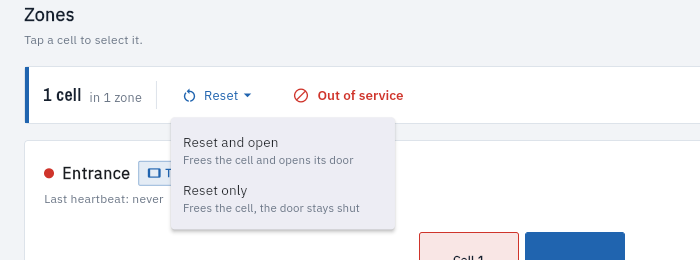
- Press Reset in the bar above the zones. A small menu offers two choices:
- Reset and open: frees the cell and opens its door, so the person's things can be collected.
- Reset only: frees the cell, but the door stays shut. Anything inside stays shut in until someone opens the cell.
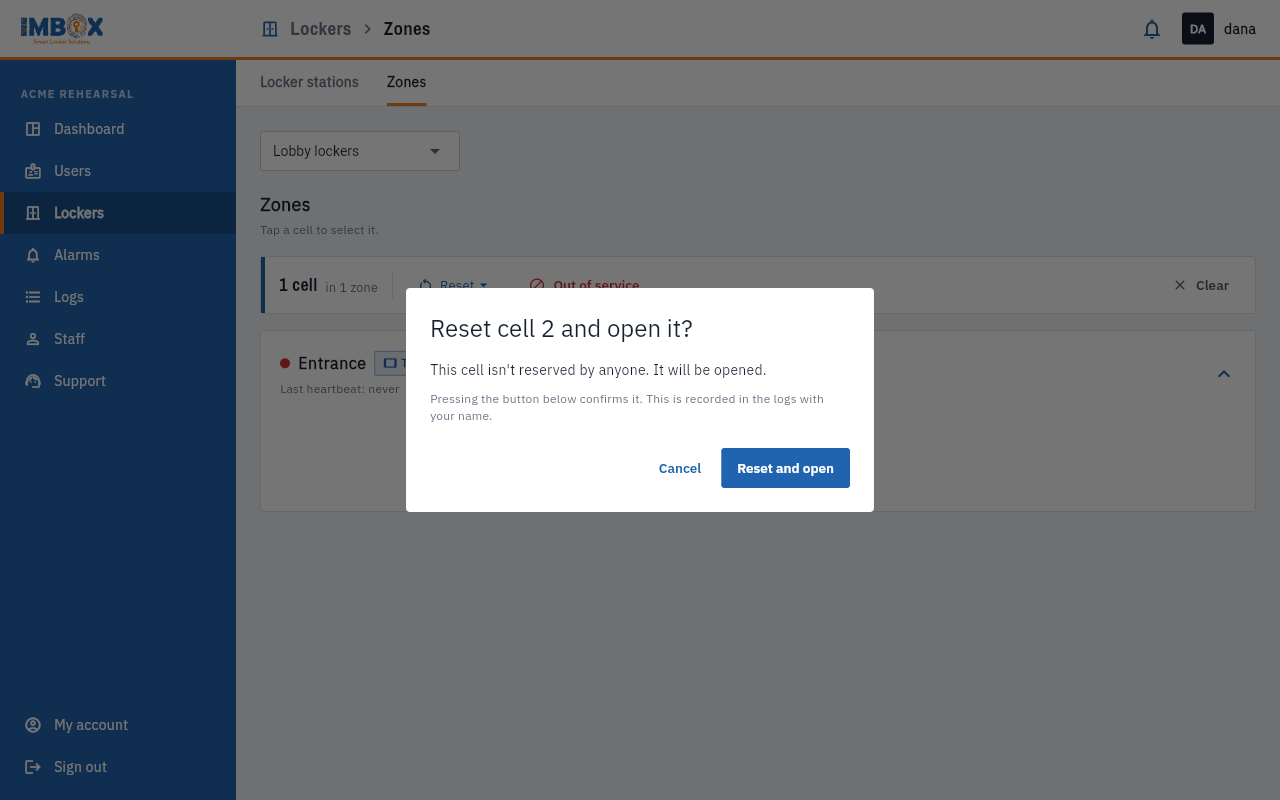
- A box explains what will happen: who holds the cell and what will be cleared.
- Press the confirm button, which has the same name as your choice (Reset and open or Reset only). The page says "Cell N was reset and opened." or "Cell N was reset. The lock was not opened."
What happens to the person
| The cell is... | What happens |
|---|---|
| Not reserved by anyone | Nothing to clear. With "open" the cell opens. |
| Held by a person in a shared zone | Their reservation is cleared. They need to scan again to get a cell. |
| A permanent cell given by an admin | It stays assigned to that person. Reset only opens it, if you chose to. |
Reset only: the door stays shut
If you reset without opening, a person's things may still be inside. Choose Reset and open it when someone needs to collect them.
It is recorded
You are not asked for a password. Pressing the confirm button is the confirmation. The reset is written in the logs with your name, the cell and the time. You can find it in Activity.
If it does not work
If the station has not checked in recently, the console says so and changes nothing. Check the station's connection and try again.