Zones and cells
Open Lockers, then the Zones tab. Choose the locker station at the top. Each zone is a panel with its cells inside.
A zone panel
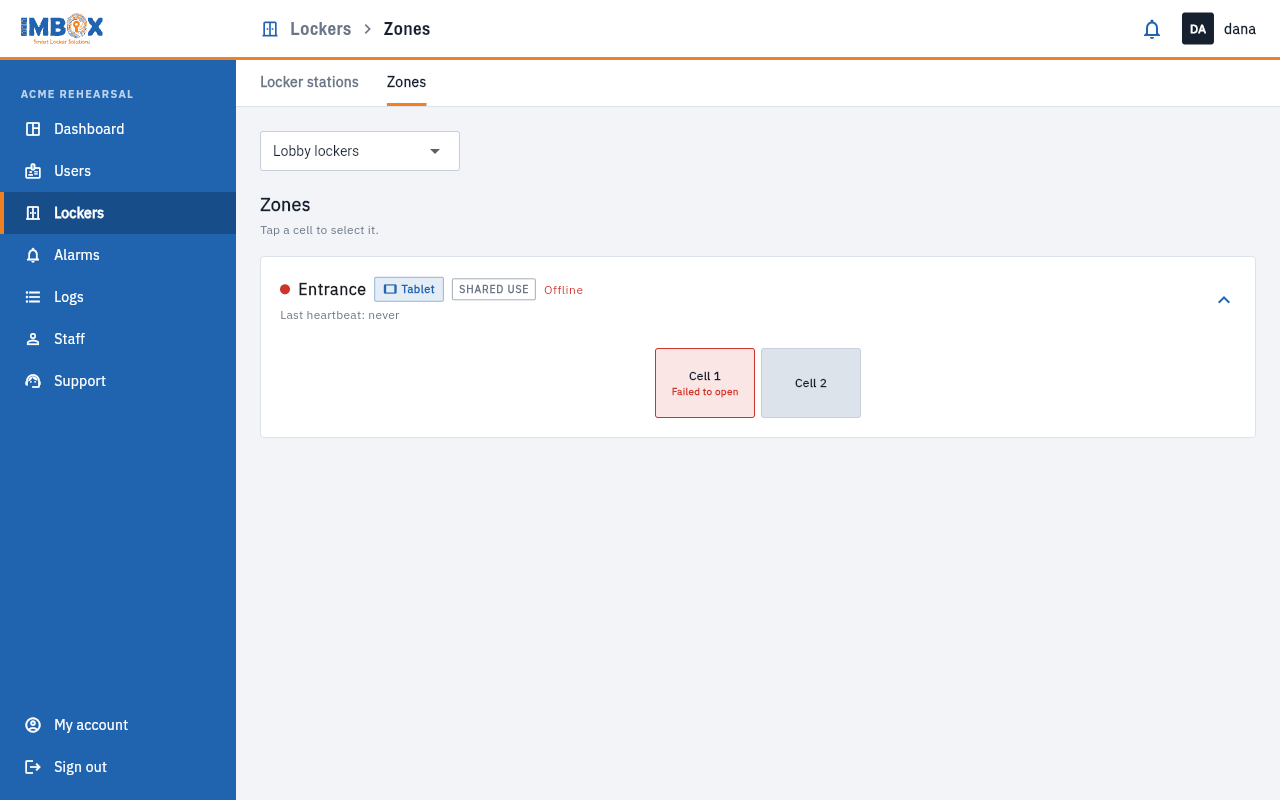
The panel shows the zone's name, what kind of screen it has (Tablet or a card reader), whether it is shared or permanent, whether it is online, and when its screen was last heard. The arrow at the right opens or closes its cells.
What a cell's colour means
Each cell is a tile with its number. The colour is its state.
| Tile | Meaning |
|---|---|
| Light grey | Free. Nobody has it. |
| Green | Taken. A person holds it. |
| Orange, "Door open" | The door is open at the moment. |
| Orange, "Open too long" | The door was left open too long. See What the alarms mean. |
| Orange, "Low battery" | A Bluetooth lock's battery is low. |
| Orange, "Lock not heard" | A Bluetooth lock has not been heard from. |
| Red, "Failed to open" | The lock did not open when asked. |
| Red, "Policy violation" | A closed cell was found open. |
| Dark grey, "Out of service" | You took it out of service. Nobody is given it. |
A cell with an alarm still works. Only taking it out of service stops people being given it.
Select cells
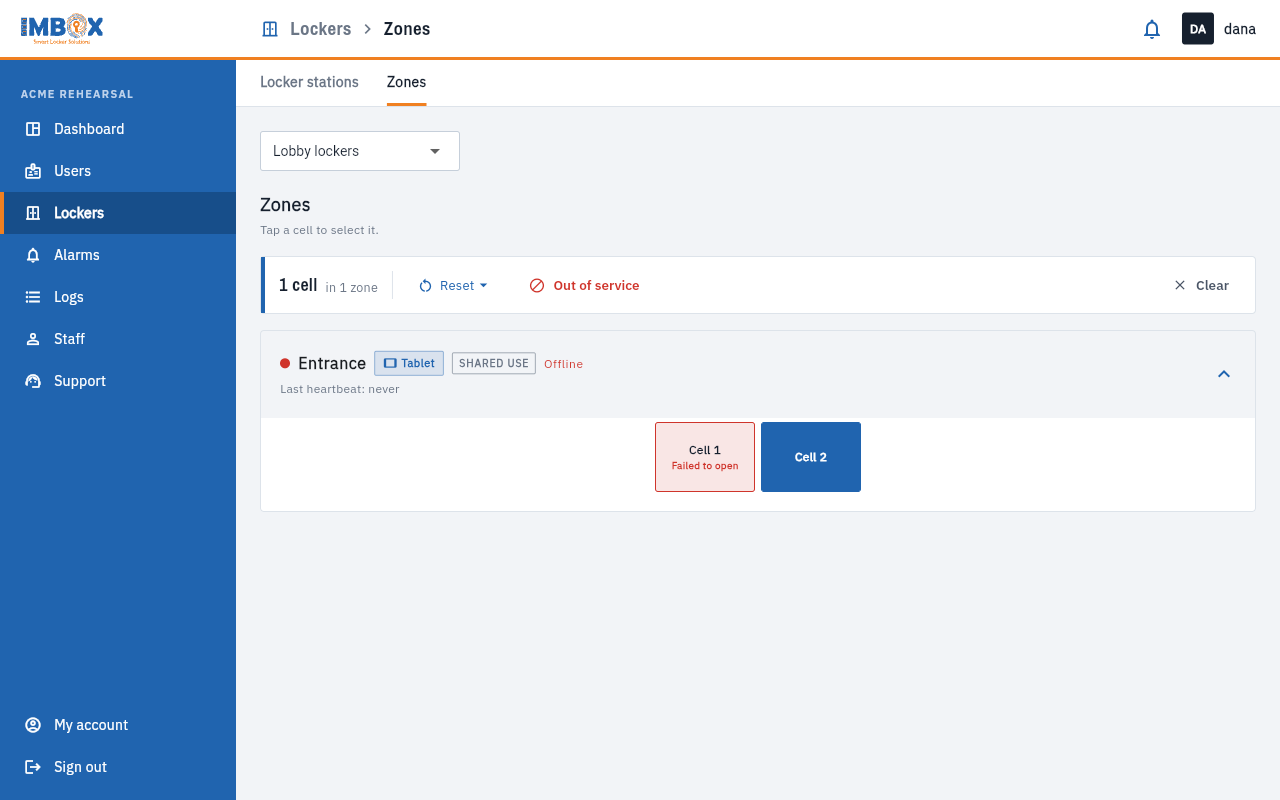
Tap a cell to select it. Tap again to unselect. Select several to act on all of them. A bar appears showing how many are selected, with a Clear button.
What you can do with the selected cells
| Action | What it does | Needs |
|---|---|---|
| Out of service / Back in service | Takes the cells out of use, or puts them back. See Taking a cell out of service. | Take cells out of service and back |
| Reset | Frees the cell, and optionally opens it. Select one cell. See Reset a cell. | Reset a cell |
| Move to zone | Moves cells to another zone. | IMBox only |
| More actions | Bluetooth lock settings. | IMBox only |
The buttons you do not have the permission for are hidden.
Permanent cells
A cell that a person holds shows that person's name on its tile. To give or free a cell for a person, use Add a user or Change or remove a user.
What IMBox handles in this page
The zone's menu (Zone actions) also has Rename zone, Delete zone, Screen mode, Reload screens, Disconnect tablets and Self-registration, and the page lists the reader devices. These change how the hardware behaves, so only IMBox can use them. If you need one of them, ask IMBox.