Add and manage staff
Staff are the people who sign in to this console. They are different from users, who open cells at the lockers (see Welcome).
Open Staff in the left menu. You need the permission Add, edit and remove staff. Owner and Admin have it.
Add a staff member
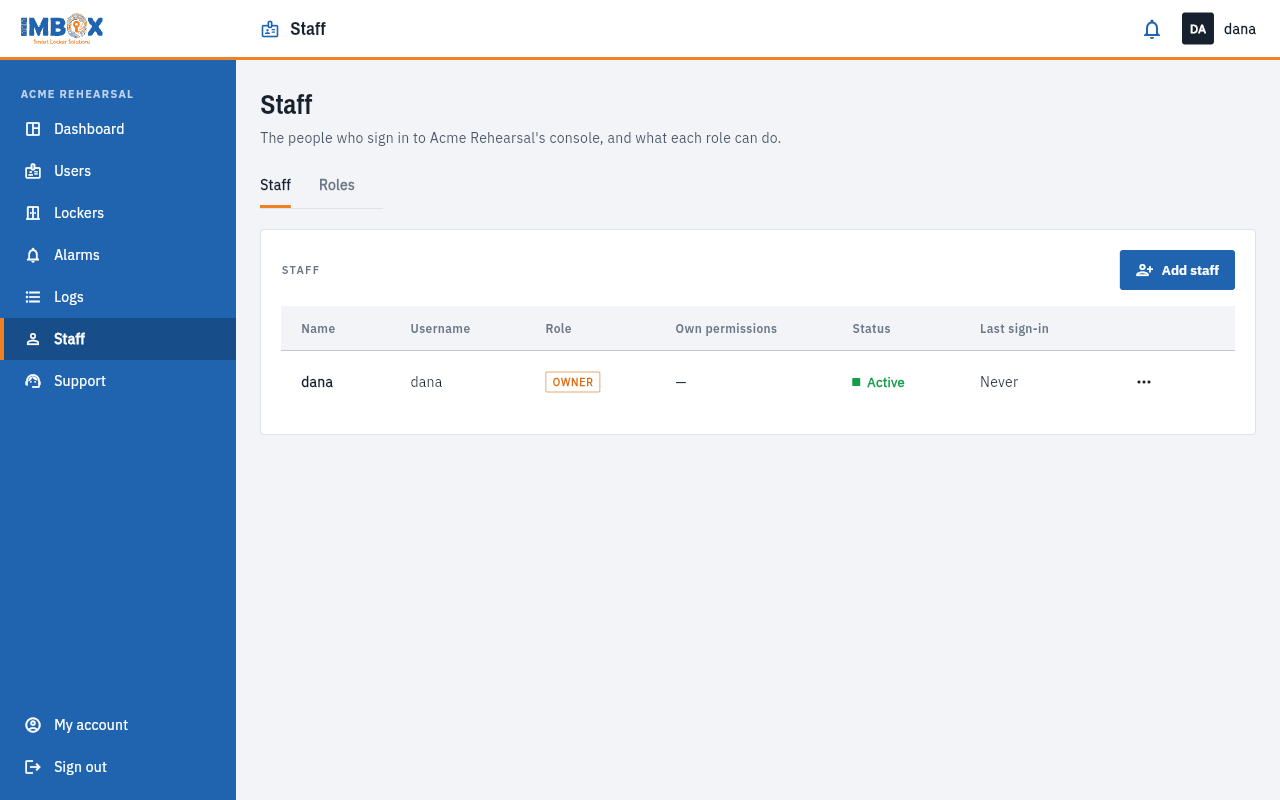
- On the Staff tab, press Add staff.
- Fill in:
- Full name.
- Email.
- Username: what they type to sign in.
- Temporary password: at least 8 characters.
- Role: choose one. Each role shows what it is for.
- Press Add.
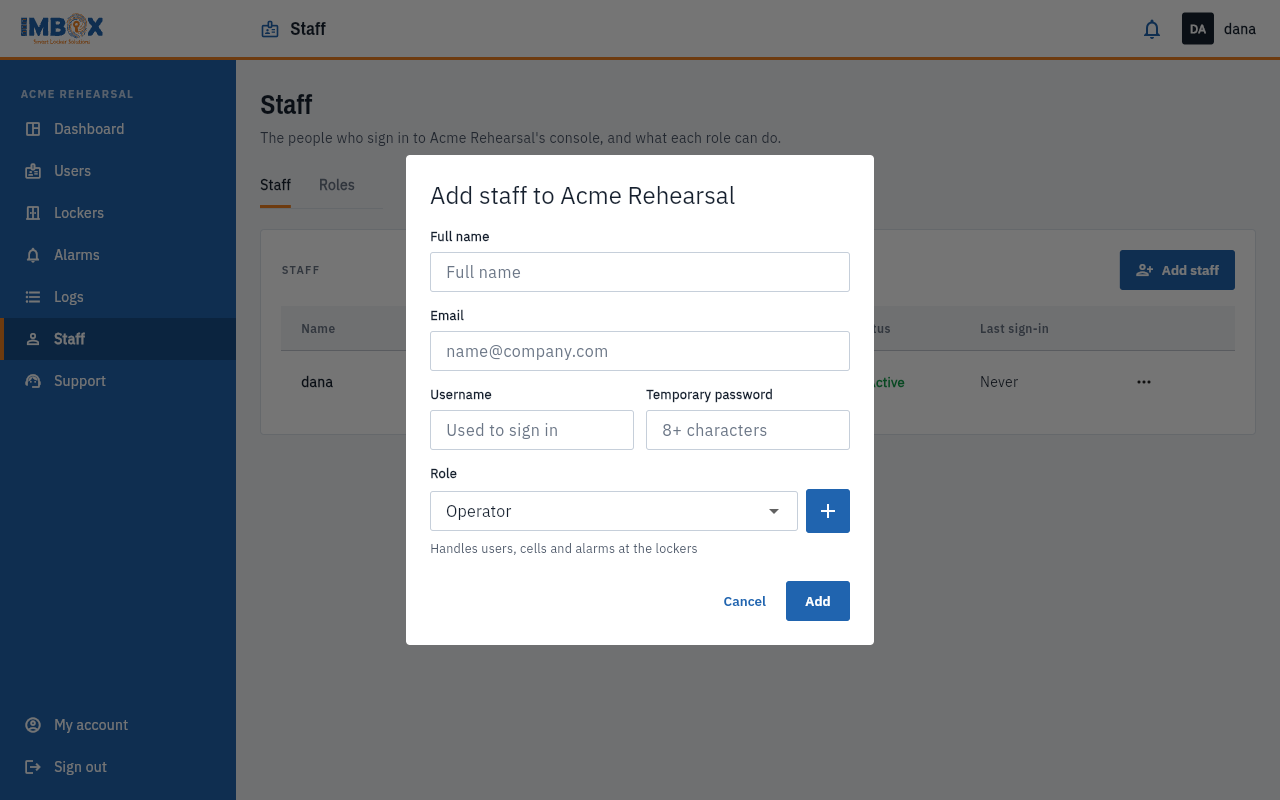
- Tell the person their username and temporary password, and ask them to change the password in My account.
The staff list
| Column | Meaning |
|---|---|
| Name and Username | Who they are. |
| Role | Their role. |
| Own permissions | Extra permissions given or taken away for this person, for example "+1 −2". A dash means none. See Permissions for one person. |
| Status | Active or Disabled. |
| Last sign-in | When they last signed in, or "Never". |
What you can do with a person
Press the three dots on a person's row:
| Action | What it does |
|---|---|
| Change role | Choose another role. They get its permissions at once. |
| Own permissions | Allow or deny single permissions for this person. |
| Disable sign-in / Enable sign-in | Stops, or allows again, the person signing in. Their record stays. |
| Remove | Deletes the person's login. You are asked to confirm. |
Rules to know
- You cannot remove or change yourself. Ask another Owner or Admin.
- The last Owner of an organisation cannot be disabled, so an organisation is never left without one.
- Removing a person is permanent. To keep their record but stop them signing in, use Disable sign-in.
Someone leaves
Disable their sign-in the same day. It takes effect at once, and you can remove them later.