Roles
A role is a named list of permissions. Open Staff, then the Roles tab.
The table
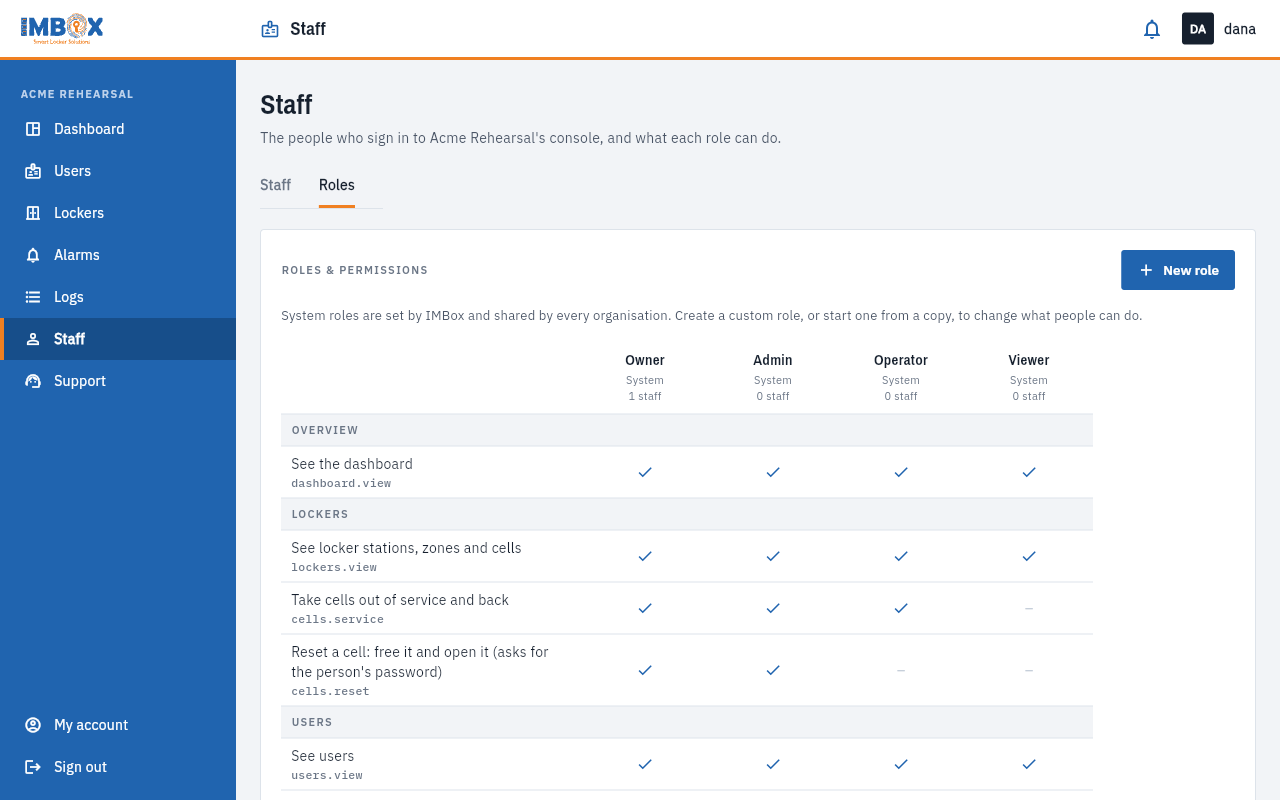
The Roles & permissions table has one column per role and one row per permission, grouped: Overview, Lockers, Users, Alarms, Logs, Staff and Support. A tick means the role has it.
The four System roles come with every organisation and are the same everywhere:
| Role | For |
|---|---|
| Owner | Everything inside the organisation. |
| Admin | Runs the organisation day to day, except roles. |
| Operator | Handles users, cells and alarms at the lockers. |
| Viewer | Can look at everything, change nothing. |
System roles cannot be edited. They are marked System. Roles you create are marked Custom, and under each role you see how many staff use it.
Create a role
You need the permission Create and edit roles. Only the Owner has it by default.
- Press New role.
- Type a Role name, for example "Front desk".
- Under Start from, choose No permissions to build it up, or A copy of an existing role to start from it.
- Press the button to create it.
- In the table, tick the permissions the role should have. Each tick is saved as you make it.
Change a custom role
- Rename: use the role's header menu.
- Change permissions: tick or untick in the table.
- Delete: use the role's header menu. A role that staff still use cannot be deleted: the box says "N staff use this role. Move them to another role first." Move them, then delete.
The permissions
| Group | Permission | Lets the person |
|---|---|---|
| Overview | See the dashboard | Open the dashboard. |
| Lockers | See locker stations, zones and cells | Open the Lockers pages. |
| Lockers | Take cells out of service and back | Use the Out of service button. |
| Lockers | Reset a cell | Free a cell, with or without opening it. |
| Users | See users | Open the user list. |
| Users | Add, edit and remove users | Add, edit and delete people. |
| Users | Assign and free cells for users | Give a person a cell, or take it back. |
| Alarms | See alarms | Open the alarms. |
| Alarms | Resolve alarms | Press Resolve. |
| Alarms | Resolve every alarm at once | Press Resolve all. |
| Logs | See logs and activity | Open all the log tabs. |
| Staff | Add, edit and remove staff | Manage the people who sign in. |
| Staff | Create and edit roles | Make and change roles. |
| Support | Report issues to IMBox support | Report an issue and follow it. |
A role cannot hold IMBox's permissions
Setting up hardware, running the fix tools and the like belong to the IMBox team only. They never appear in your roles.