Signing in
Sign in
- Open the console address your organisation gave you.
- Type your Username and Password. The eye icon shows or hides the password while you type.
- Press Sign in.
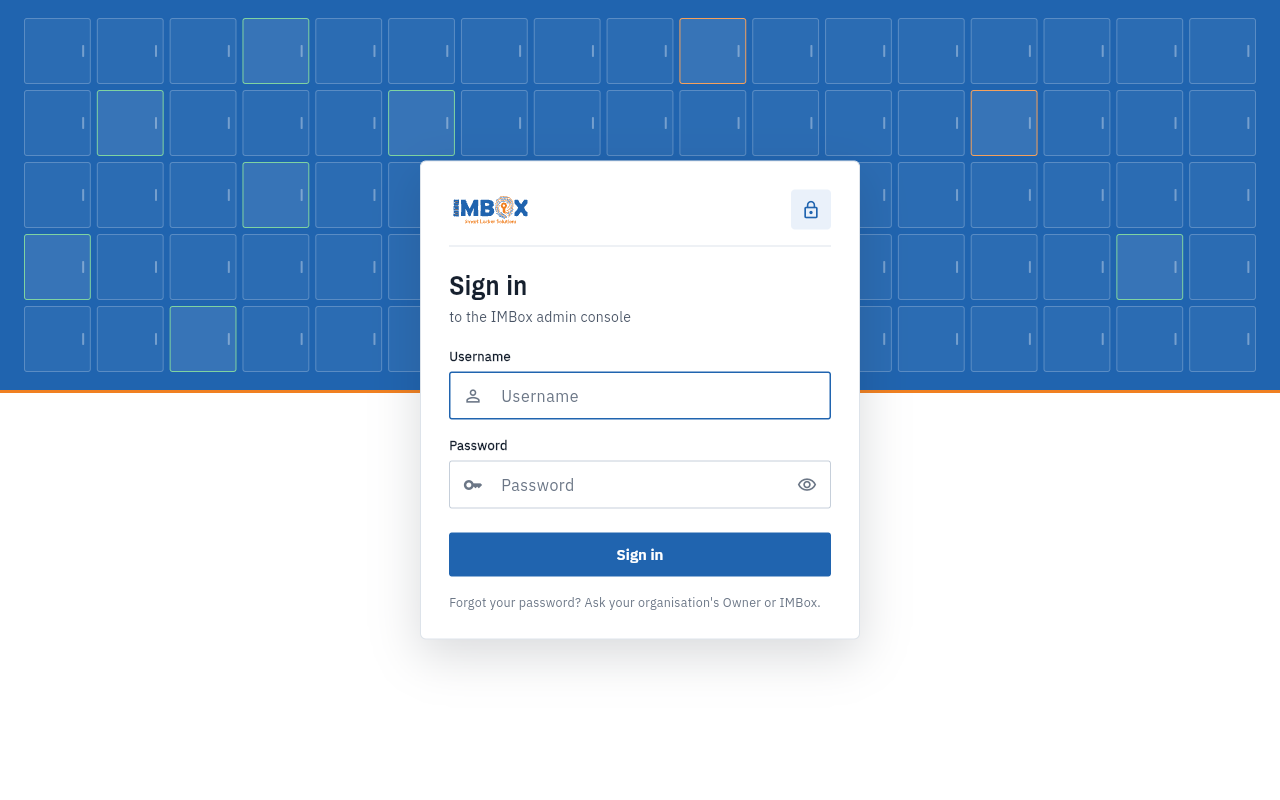
You land on the first page your role may see, usually the dashboard.
Forgot your password?
Ask your organisation's Owner or IMBox to help you get back in. The sign-in page says the same.
Sign out
Open the menu (on a phone, the three lines at the top left), then press Sign out at the bottom of the left menu. The console asks you to confirm.
Change your password
- Open My account at the bottom of the left menu.
- In Change password, type your Old password and your New password.
- Press Change password.
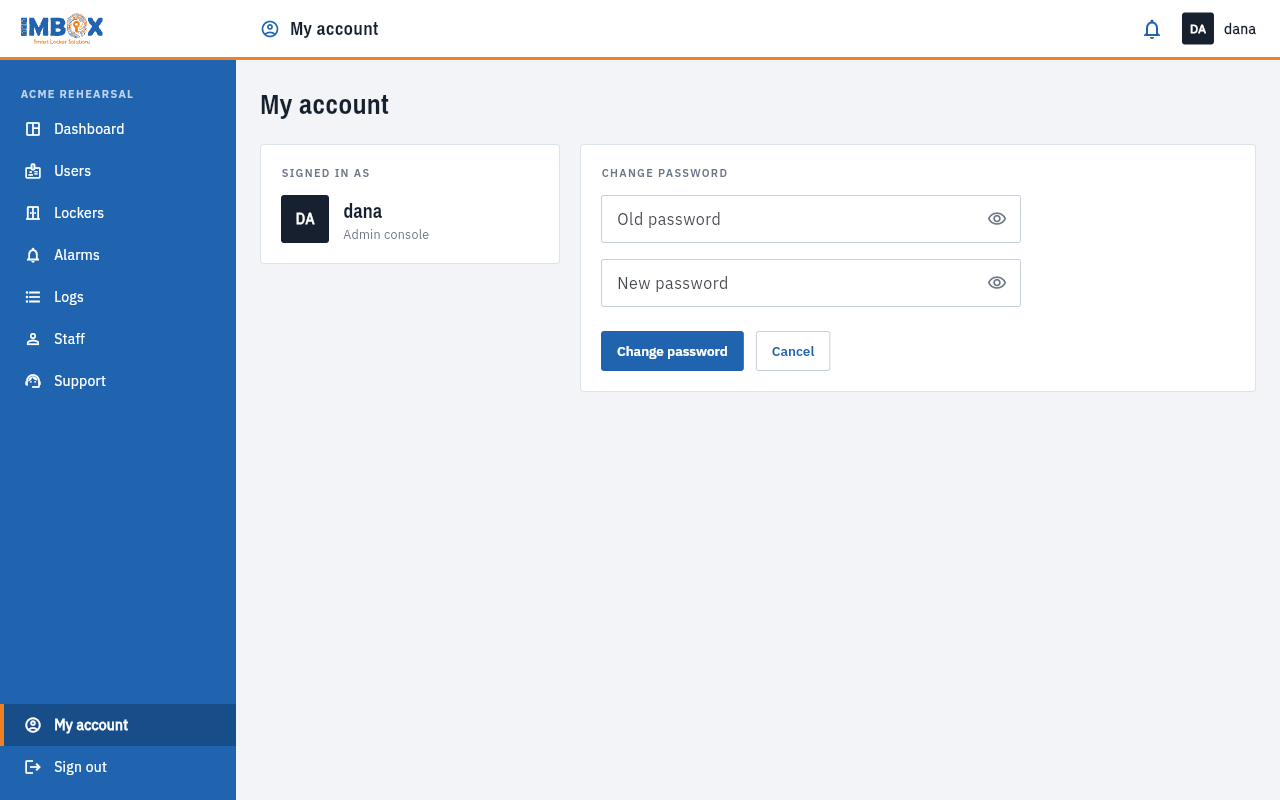
The same page shows who you are signed in as.
A new password signs you out everywhere else
When you change your password, every other browser or device where you were signed in is signed out, in case someone else had it. This one stays signed in.
When it does not work
| What you see | What it means | What to do |
|---|---|---|
| "Login failed. Please check your username and password for accuracy." | The username or password is wrong. | Check both, then try again. Ask your Owner to reset the password if you cannot remember it. |
| "Your organisation has been deactivated. Please contact IMBox." | IMBox has switched your organisation's console off. The lockers themselves keep working. | Contact IMBox. |
| "Your session ended. Sign in again to carry on." | You were signed out. A session lasts eight hours by default, or until the password is changed. | Sign in again. |
Several devices at once
You can be signed in on your computer and your phone at the same time. Each one has its own session, and signing in on one does not sign out the other.