Add a user
A user is a person who opens cells with a card, a QR code or an ID at the station. You add them once, and say which cells they may use.
The station needs a location, a locker station and at least one zone. If one is missing, the list in step 3 is empty. Ask your IMBox contact to add it.
Steps
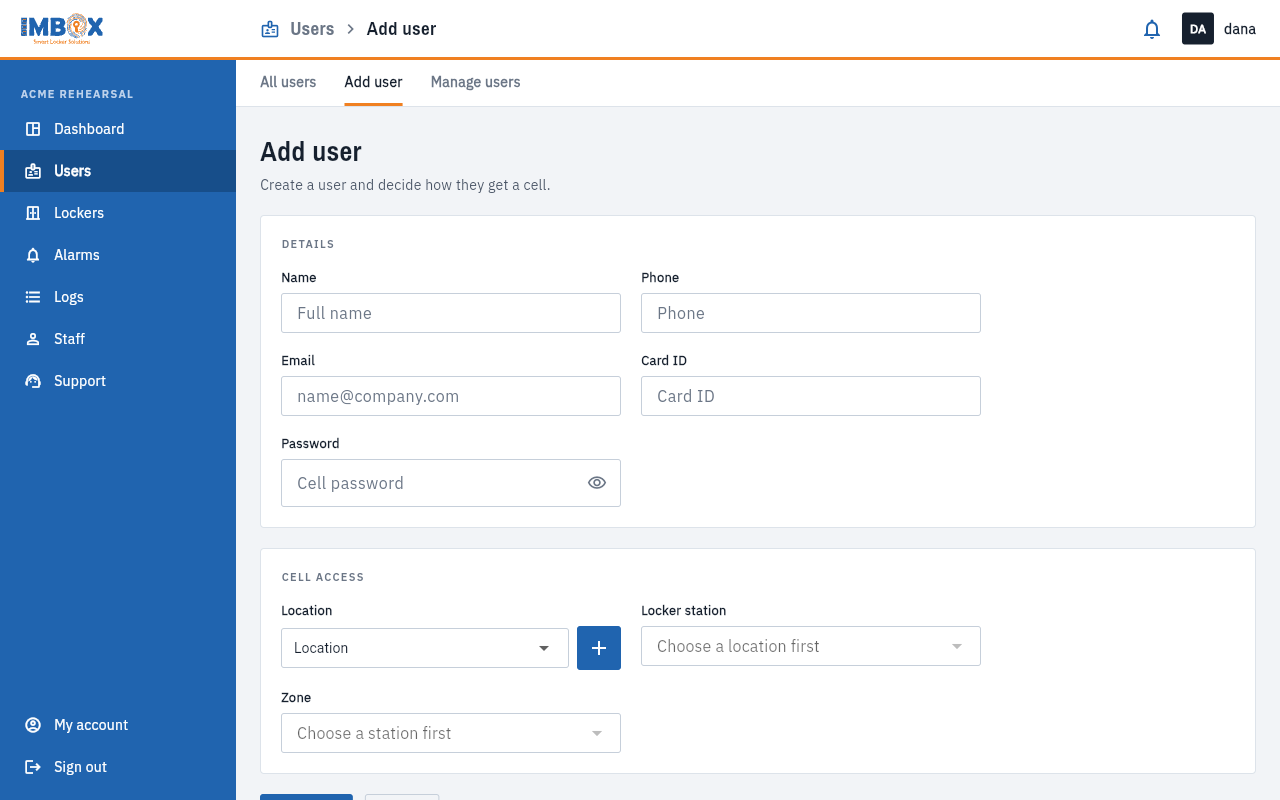
- Open Users in the left menu, then the Add user tab.
- Fill in the Details:
- Name: the person's full name.
- Phone: numbers only.
- Email: a valid address.
- Card ID: the number printed on the person's card. Type it exactly as printed.
- Password (optional): the station screens do not ask for it today, so you can leave it empty.
- Under Cell access, choose the Location, the Locker station and the Zone. The blue + button beside Location adds a new location: type its name and save.
- A message tells you what the person will get. Read it, see Shared or permanent cells below.
- If the zone gives permanent cells, pick one of the free cells shown, or leave it empty to give one later.
- Press Save user. The person appears in All users straight away.
What the form tells you
Under Cell access, a coloured message appears once you choose a zone:
- Shared zone (blue): nobody gets a permanent cell here. Each visit the person is given a free cell, and it is released when they collect their things.
- Permanent cell (green): cells in this zone are given to one person each, permanently.
Permanent cells: choosing the cell
When the zone is permanent, you see the free cells as buttons: Cell 3, Cell 4 and so on. Only cells that can be given permanently are listed.
- Choose one to give it now.
- Leave all unselected to create the person now and give them a cell later.
- If none is free, the page says so. You can still create the person.
You can also set when a permanent cell is available: Available 24/7, or Available at specific times with dates and times.
If something is missing
| Message | What to do |
|---|---|
| "Please select a location" | Choose the location first. |
| "Please select a locker station" | Choose the station. |
| "Please select a zone" | Choose the zone. |
| No free permanent cell in this zone | Create the person anyway and give a cell later, or free a cell. |
At the station a person opens their cell with their card or ID. The screens never ask for a password, so leaving this field empty changes nothing.