Change or remove a user
Open Users, then the Manage users tab. You need the permission Add, edit and remove users.
Change someone's details
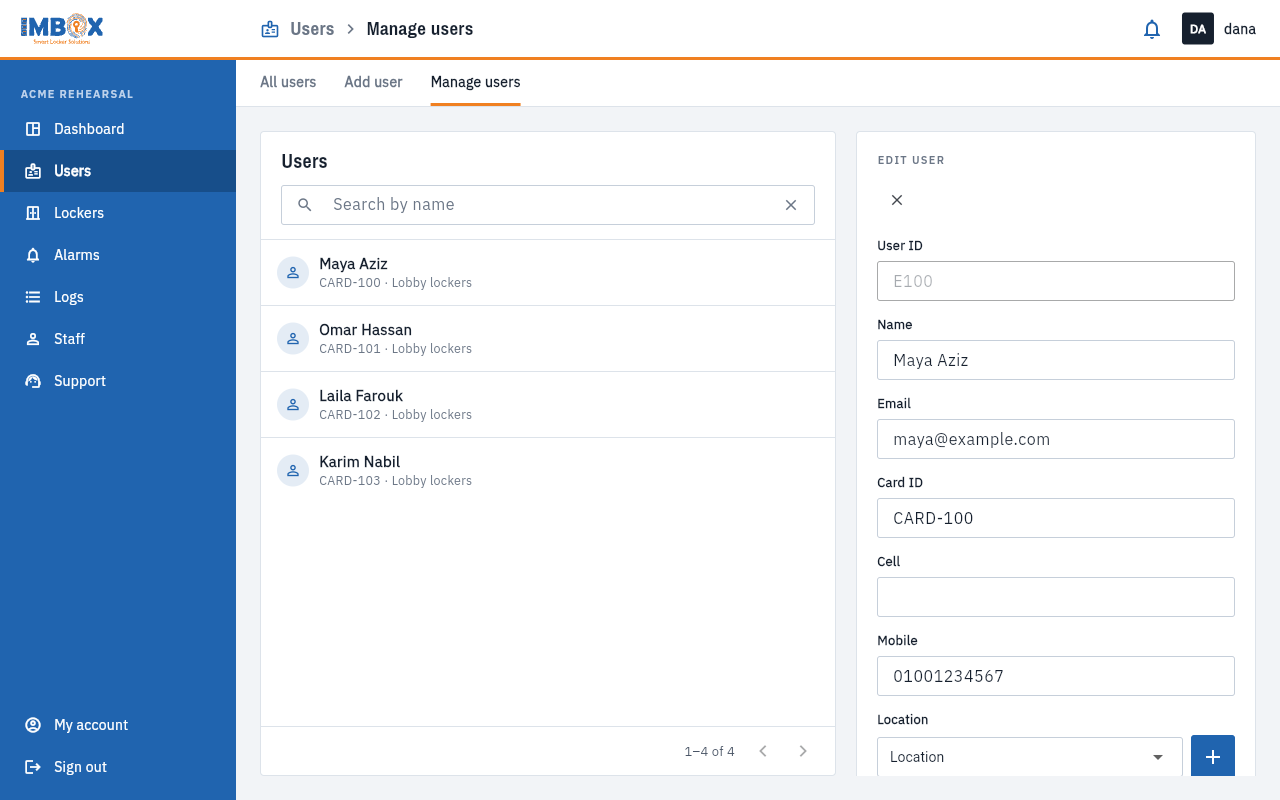
- Find the person in the list. Type a name in the search box if the list is long.
- Select the person. The Edit user panel opens beside the list, or below it on a phone.
- Change what you need:
- Name, Email, Card ID, Mobile.
- Cell: the cell number, for a permanent cell.
- Location and Reservation mode: shared or pre-assigned.
- Press Save changes.
The User ID is made by the system and cannot be edited.
If a person loses their card, change their Card ID to the number on the new card. The old card stops working at once.
Delete a user
- Select the person.
- Press Delete user.
- Confirm in the box that says "Delete user?" with their name.
The person is removed and can no longer open cells. If they held a cell, it is free again. This cannot be undone, but you can add the person again.
Give a cell later, or take it away
In a permanent zone, a person created without a cell can be given one: type the number of a free cell in their Cell field and save. To take a cell away, use Reset a cell.
When the station is offline
Adding, changing or deleting a user is carried out at the station too. If the station has not reported in recently the console says: "This locker station hasn't checked in recently, so it may be offline. Check its internet connection and try again." Nothing is changed. Check the station's internet connection, wait a minute, and try again.
Leave the edit panel
The cross at the top of the panel closes it without saving.