Seeing your users
Open Users in the left menu. The first tab, All users, lists everyone who can open cells in your organisation.
What each row shows
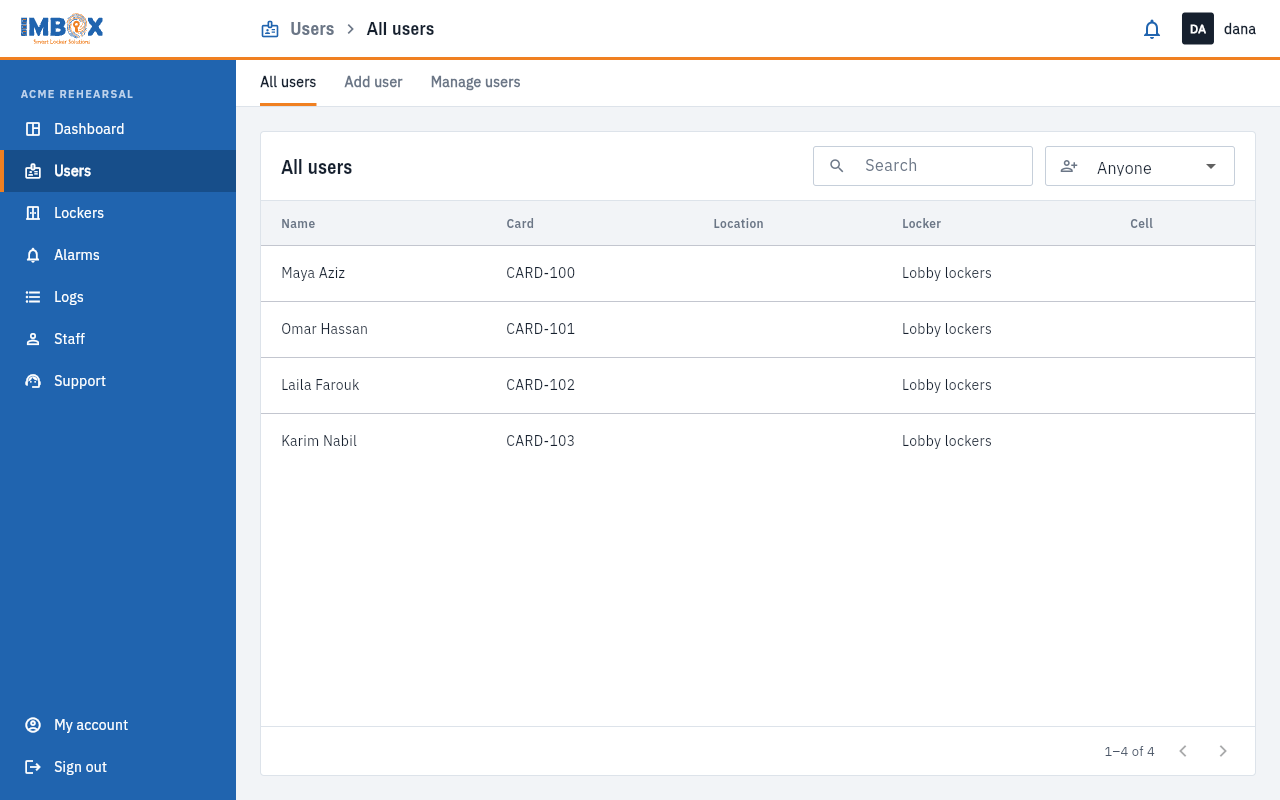
| Column | Meaning |
|---|---|
| Name | The person's name. |
| Card | The number of their card. |
| Location | Where their cell is. |
| Locker | Which locker station. |
| Cell | Their cell number, if they hold one now. |
On a phone each person is a card: name and card number at the top, the cell as a small label at the right, and the location and locker below.
Find someone
- Search: type part of a name or card number in the search box and press Enter. The cross clears it.
- Who added them: the drop-down next to the search filters by how the person was added: Anyone, Self (they registered themselves at the station screen) or Staff (a staff member added them).
The list is paged, eight people at a time. Use the arrows under the list to move between pages.
Who can see this
Anyone whose role includes See users. To add, change or remove people you also need Add, edit and remove users. See Roles and what they can do.